







to do list (Admin only)
LESSON OVERVIEW
In this lesson we will learn how to bake variety of maps using Substance Painter.
We will start by having a quick look at the software and what it’s used for. Then we’ll move on to create our first project and familiarize ourselves with the basic UI layout. After that it will be time to get to the main course of the lesson which is baking and fixing most common baking problems. Finally we have prepared for you an exercise to help you try baking yourself.
⚠️
Missing LESSON OVERVIEW
What is Substance 3D Painter
Substance Painter is current industry standard software for creating detailed PBR textures directly on 3D assets. Much like Photoshop, it uses layer stack workflow that let’s artists create materials by covering the asset in details layer by layer. Example of that would be having wood material and then layer above it paint and on top a glossy varnish. If you worked with other graphics software you surely encountered something similar.
Texturing an asset in Substance Painter usually happens in two parts, baking and texturing itself. In this lesson we will focus on the first part of the process and introduce the software to you.
Preparing mesh for a bake
Before we start baking all those beautiful maps it’s important to double check couple of things just to make sure we won’t have any easy to avoid problems.
Here is a quick checklist to go through:
- Naming conventions - make sure your low poly is divided nicely into pieces with suffixes “_low” and that they have their “_high” counterparts in high poly mesh. We will be using it to prevent bleeding the bake between the pieces of geometry.
- Overlapping UVs - double check if there is no overlaps in UV shells (unless you’re mirroring).
- UV padding - Ensure enough padding in between UVs so they don’t bleed to one another (min 2px between shells).
- Straighten UVs - check if you straightened all the shells that can be straightened. Good way to look at it is that if it looks like bent or wobbly rectangle it can be straightened.
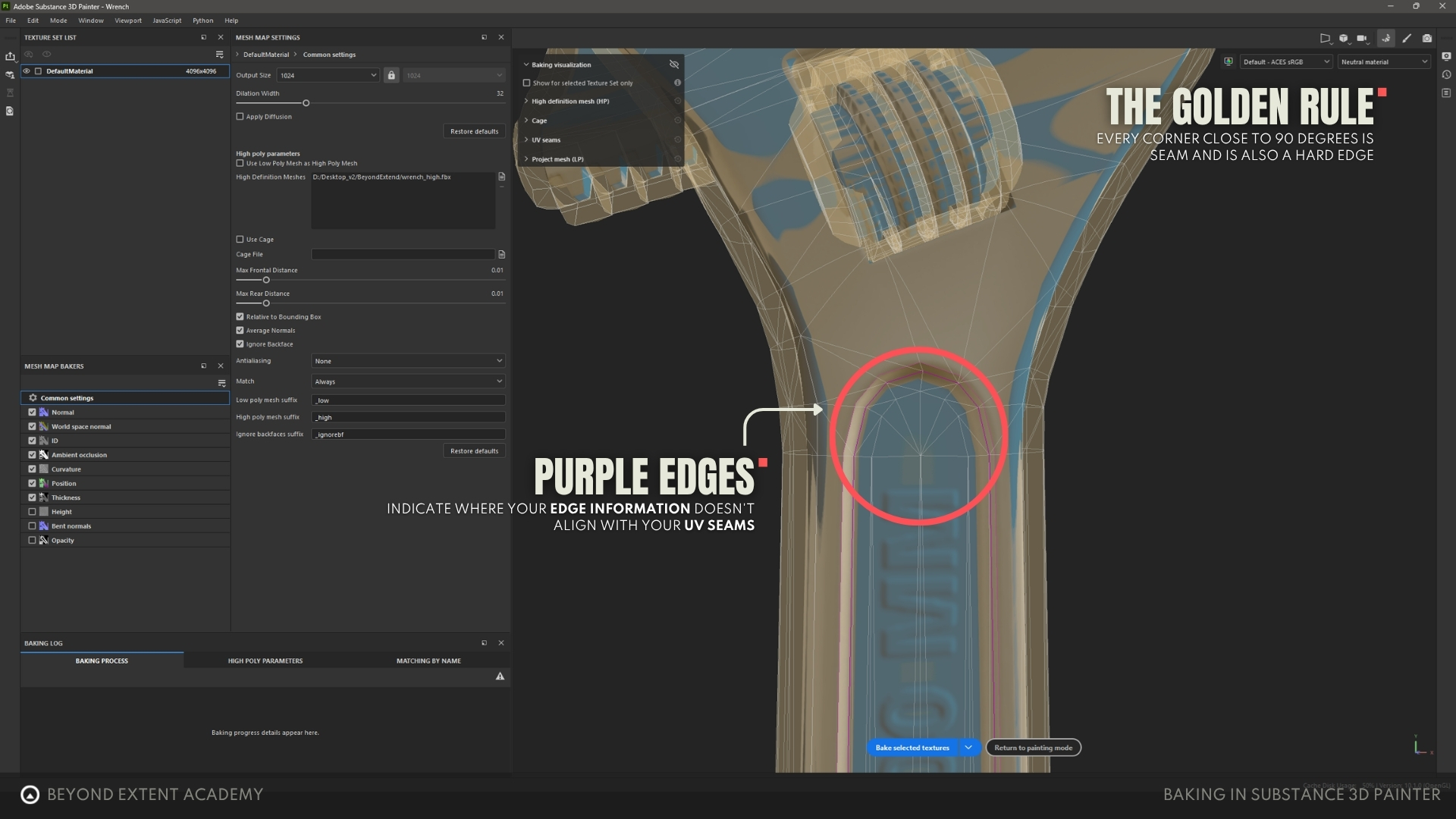
- Sharp edges (aka. Hard Edges) - the golden rule is “If the edge is marked as sharp it has to be a seam” not the other way around. Don’t go out making every seam a sharp edge. (If your software uses smoothing groups then edges of smoothing groups should be seams).
- Apply transforms - before exporting make sure your high and low poly mesh are overlapping and apply their transforms (Select meshes and press Ctrl+A → All Transforms).
- IDs - if you know that some parts of the mesh are made with different materials you can give them separate IDs (through vertex color for example). It will make it easier to separate them in the Substance later.
Substance UI
When you first open the Substance Painter you will probably notice emptiness staring at you. Let's import a model so we can fill that void with something. To do that go to a File → New...
The "New Project" window should pop up with a couple of options to adjust your project. Below is their quick explanation but you don't have to worry about it too much as we will use a template for now.
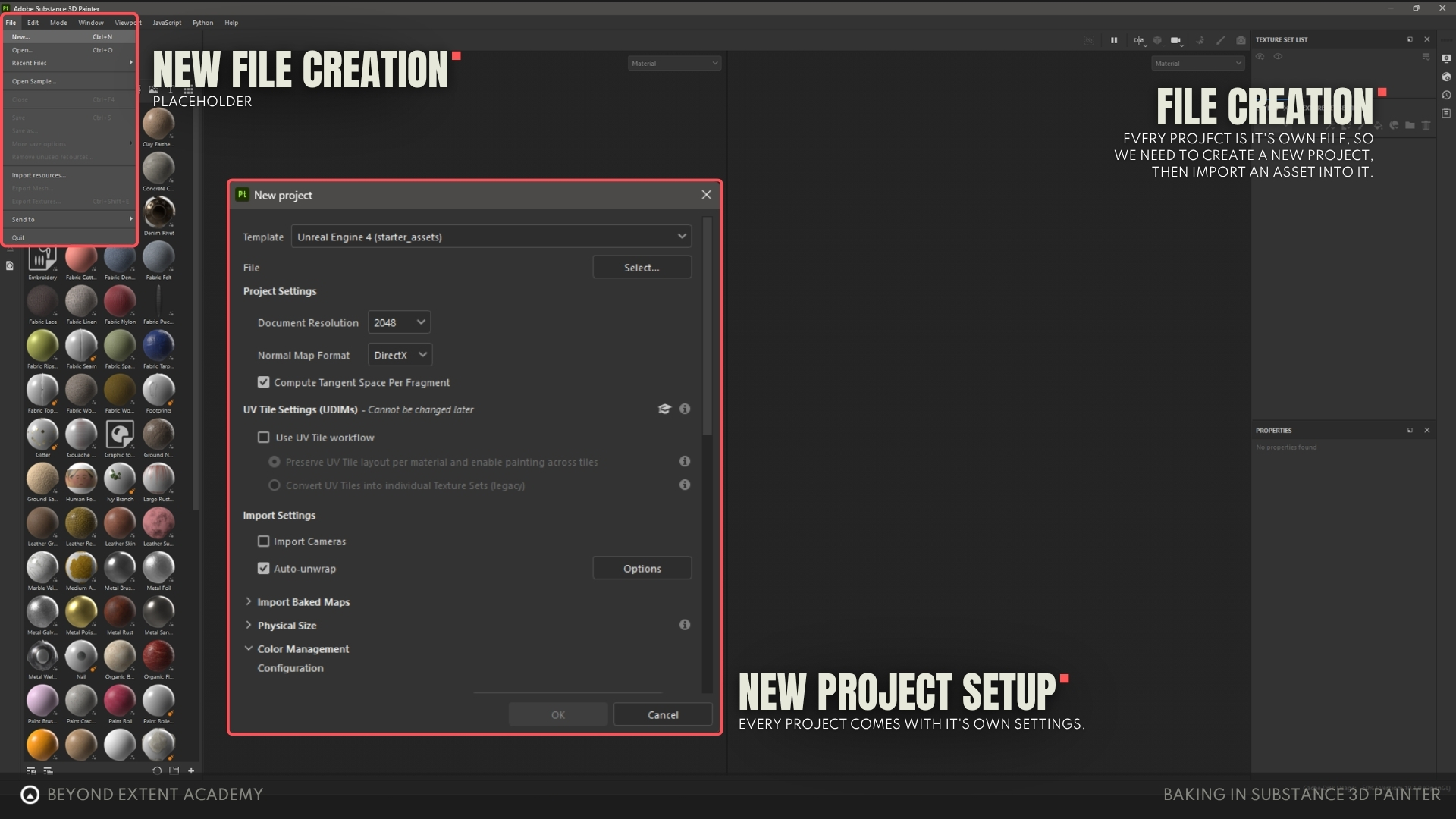
New Project Settings
- Template - this is an easy way to have most of the settings set automatically for you. Just pick the template for whatever software or export you are working towards and substance will give you a good starting point.
- File - this is where you will pick the asset you want to work on. It is the LOW poly version of the model that has been nicely unwrapped. It is the only setting that you need to manually pick every time which makes sense, we can't expect the program to know what we want to work on.
Project settings
- Document Resolution - it is the resolution of the textures you will be working with. It is the power of 2 and always square so 2048 (2k) means that your textures will be 2048 wide by 2048 high. I highly recommend always setting this to 4096 (4k) unless your hardware can't support it.
- Normal Map Format - this setting let's you choose which API will be used to display normal maps. We will cover normal maps later in this lesson. For now the only thing you need to know is what API is used by the software you want to output your textures to. DirectX is used commonly in Unreal Engine and 3dsMax whereas OpenGL is used in Unity, Blender and Maya. If you're not sure what API is used by your 3D software googling it is the way to go.
UV Tile Settings (UDIMs)
This setting allows you to create textures outside of the main UV space. For some assets you might want to double or even triple the texture space you get by default. To do that you could unwrap your asset using one or two more UV spaces next to the one you use by default. Substance would not allow you to put textures there unless you enable this setting. We will not be using UDIMs but it is good to have an idea of what they are.
Import Settings
- Import cameras - this setting will import the cameras from the file and allow you to access them when visualizing
- Auto Unwrap - this setting generates missing UVs for the imported mesh. This setting is not important for us as we'll be making sure our object is nicely unwrapped.
Import Baked Maps
If you have baked your asset previously in another software like Marmoset you can add the generated maps to your project here.
Physical Size
These settings allow you to remap the units from the imported model to your desired scale in centimeters. You should have that taken care of at the modeling stage so most of the time you will just use the internal unit scale.
Color Management
There is a lot of settings that help you with the way color gets displayed, imported and exported around substance. Those settings are used when you want your textures to look the same across different software. For example Unreal Engine uses ACES color encoding system. You might also want to change color management when working on the wide gamut monitors or when matching specific studio workflow.
For now let’s use Unreal Engine 4 (starter_assets) template select our model as the File and set Document Resolution to 4096.
Once you have the asset loaded you should see it on your screen along with default Substance UI. Let’s take a quick look at it.
RESETTING UI TO DEFAULT
If you see something else it’s possible to restore default layout by going to Window → Reset UI. Now that we can see the same things let me explain what each part of UI is.
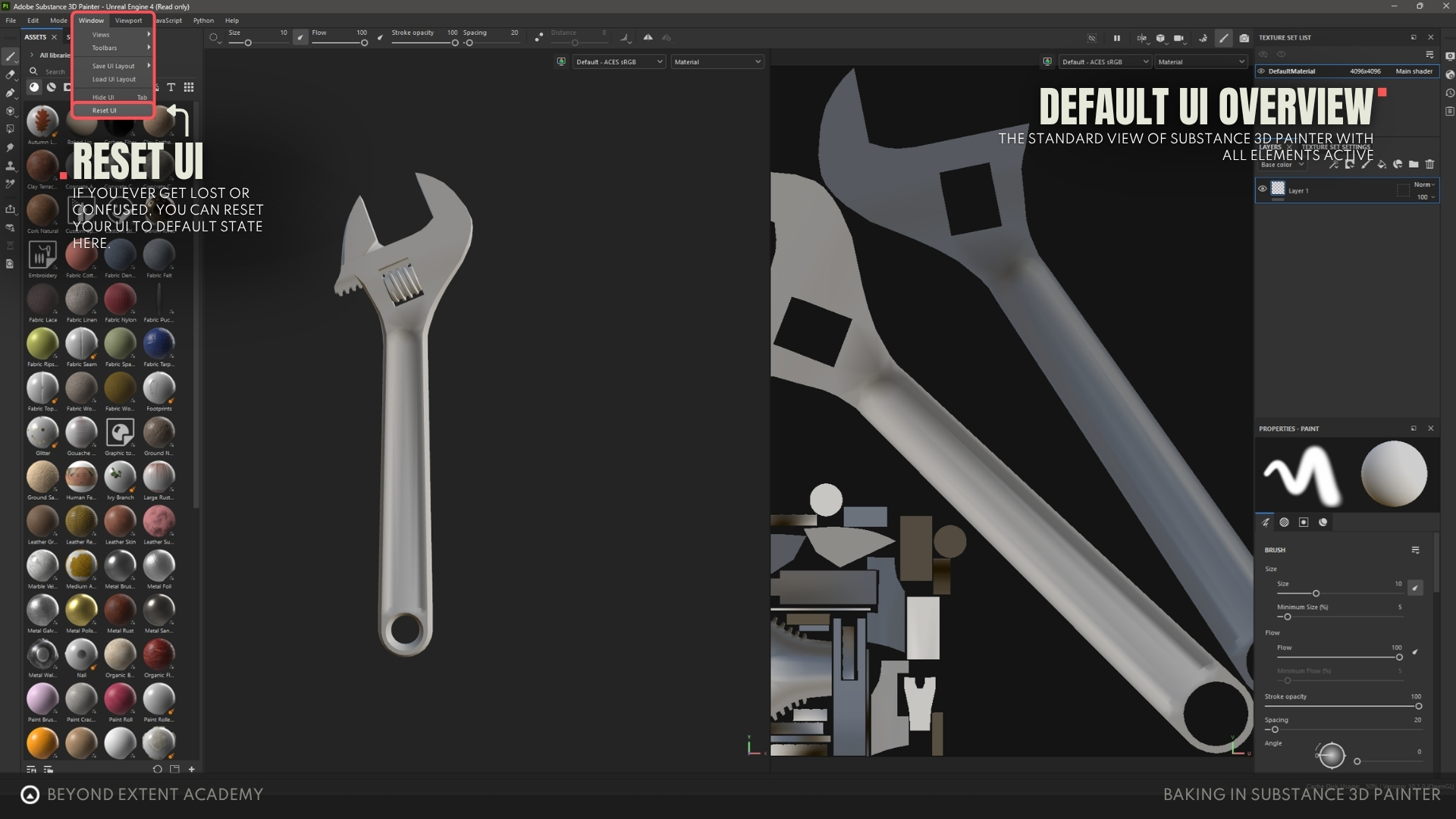
Viewport
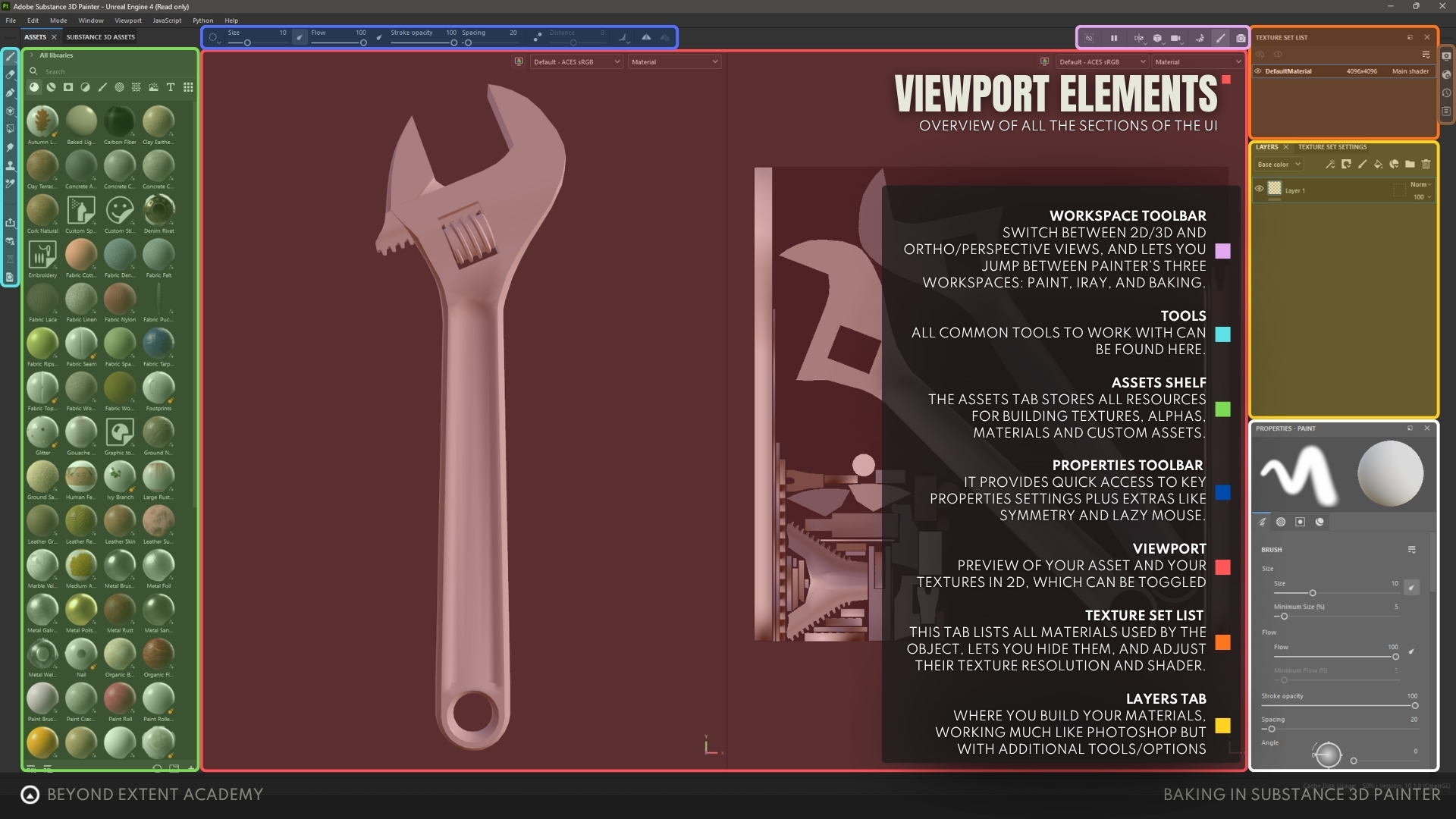
Viewport:
Main portion of the UI is taken by our viewport. It’s the place where we will be painting adjusting position of layers and checking how our materials look. It’s divided into 3D and 2D sections. Sometimes we will want to use both of them but most of the time we will stay in the 3D view.
Workspace toolbar:
It holds the settings related to your workspace. You can change between 3D and 2D as well as ortographic and perspective view. It also has icons that move you between three main workspaces of the Painter. Right now we are in the Paint workspace but we can also use Iray (nvidia’s rendering engine) to capture high quality renders of our asset or move to the Baking workspace which we will do in just a second.
Assets shelf:
Assets tab holds everything we might need to create our textures from simple alphas through brushes to complete materials waiting for us to use them. If we want to import our own assets they will appear here too.
Texture set list:
In this tab substance will display all the materials our object uses allowing us to hide them. It also allows us to change their texture resolution and shader they use. Right now we have only one but with more complex assets this number can grow. And it’s nice to have control over them when texturing.
Layers:
Layer stack is where the magic happens. It is here we will create most of the material textures. If you’re familiar with Photoshop’s layer stack it works almost the same but allows you to edit multiple textures at once through masks, generators, filters and many other wonderful tools. It’s the most powerful part of Substance Painter but we will talk about it more some other day.
Texture set settings:
This tab is the extension of “Texture set list” options for the selected material. Here we can pick what channels we want to write to as well as choosing Mesh Maps and modifying their behavior. We can also decide to start baking the maps from here.
Tools:
It’s the list of tools you can use to paint. Brush, eraser, projection tool, polygon selection and clone tool just to name a few.
Properties:
This section has all the properties of a tool you are currently using. That includes brushes, different types of layers, masks, generators, filters and more. It is here you will customize the what happens on each of the layers.
Properties toolbar:
It gives you quick access to the most important properties from “Properties” tab and couple of additional ones like symmetry and lazy mouse.
Docks:
It’s tucked away a little but holds very important settings. The first icon (Display Settings) helps you control things like current environment map and by extension lighting of your scene. Things like camera settings, post process effects, anti aliasing, subsurface scattering quality, LUTs and more can be adjusted here so it’s good to remember it exists. Second icon is responsible for all the shader settings like Specular Quality, Subsurface scattering and displacement/tessellation. If you ever want to use transparency when working in substance you will need to go here and change the shader you use.
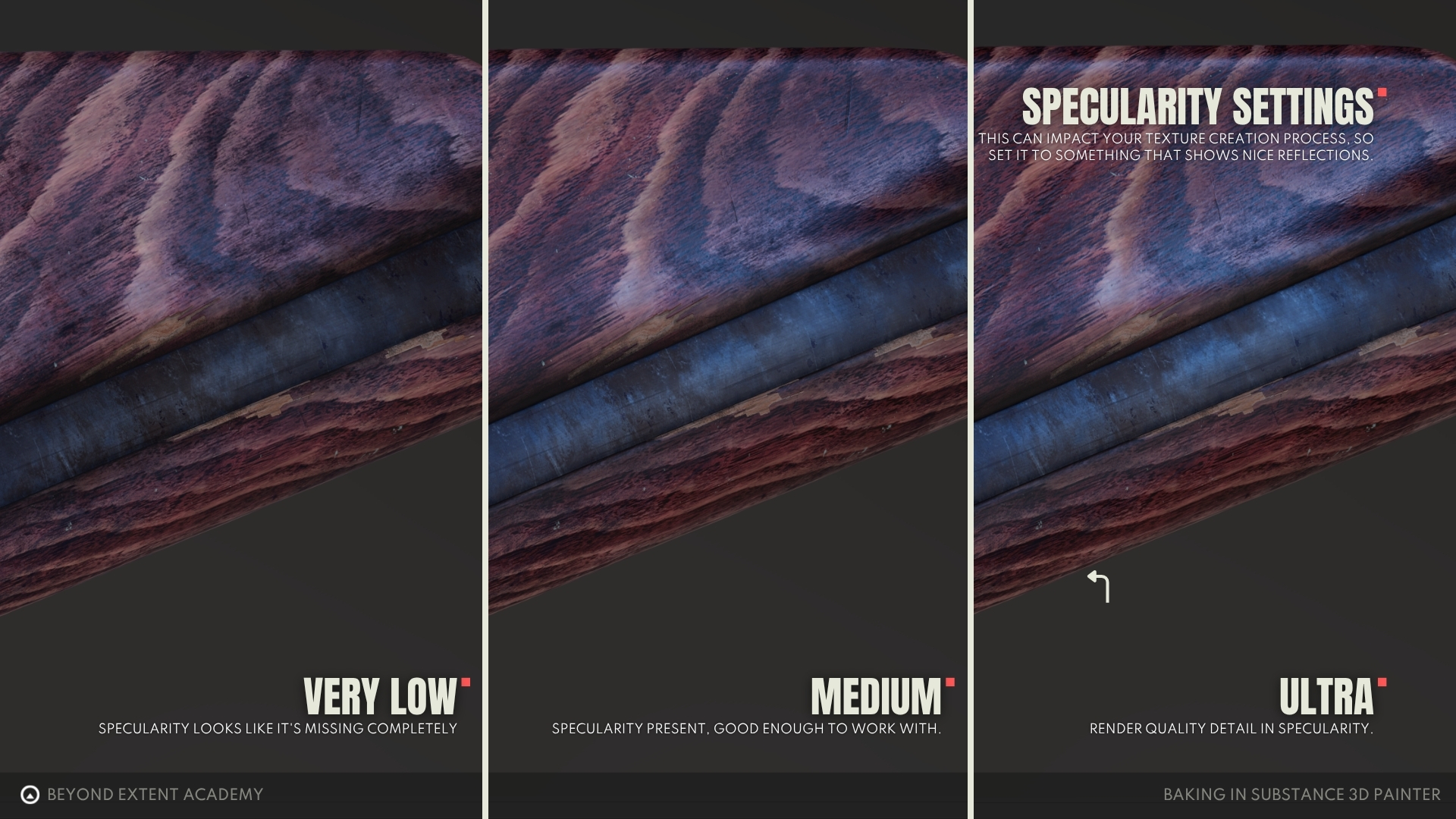
When working in substance painter the Specular Quality in Shader settings is set to Low (16 spp) by default. If raising it to High (64 spp) or more doesn’t influence performance in a way that makes it hard for you to work you should raise it. Otherwise just keep in mind to periodically check how your asset looks like with higher quality reflections. You might find it surprising how much this setting can change the final look of the roughness map.
Next two icons are simple. One is a history of edits and the other let’s you see the logs of a current session.
Now that we have familiarized ourselves with the Paint workspace let us change it to the Baking one. You can do that by either clicking on the croissant icon in the top right corner or pressing F8.
Baking
With that out of the way it’s time to learn how to prepare our mesh for baking in Substance Painter. Let me quickly remind you what baking is.
Baking is the process of translating data from mesh to maps. It’s usually done to obtain details contained in the mesh with more information (high poly) and display them in the one with less (low poly).
While high to low poly baking is the most common, it’s good to remember that high poly mesh is not required to bake maps. We can for example bake Ambient Occlusion or Curvature maps from low poly asset and use them to control our textures later.
Baking UI
For now let’s change the “Output Size” to 1024, load our high poly mesh and press “Bake selected textures” so we can take a look at the baked maps. After that we will tinker a bit with the settings and clean the bake up.
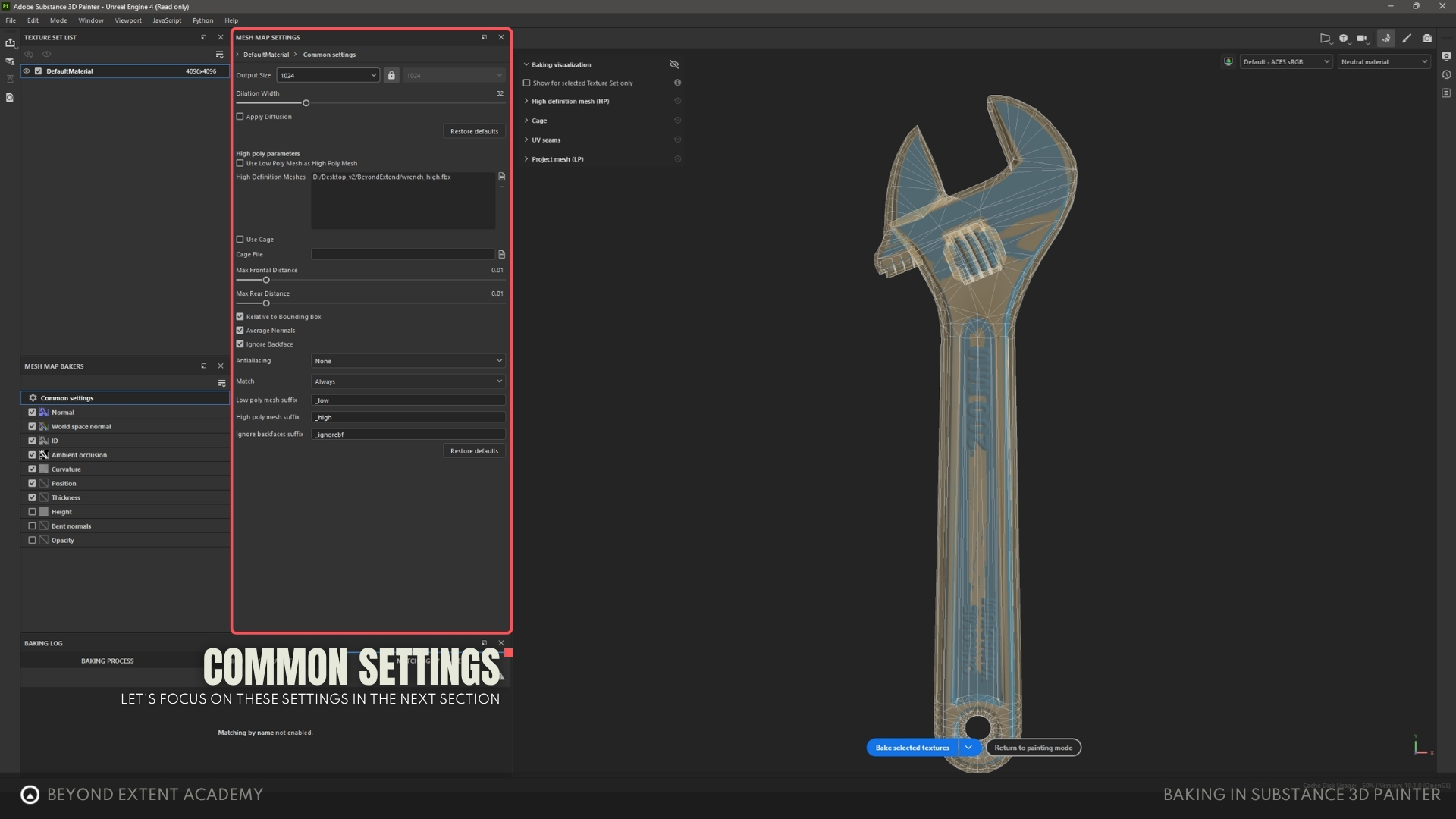
We wait a bit for the bake to finish so we can take a look at the results. After it’s done lets turn off baking visualization by clicking on the eye icon in the top left part of viewport.
common Mesh Maps
It’s time to go over all the maps that Substance Painter allows you to bake and familiarize ourselves with what they are and how we would use them. If you want to take a look at the maps in your project you can do it by selecting them from the dropdown menu in the top right part of the viewport.
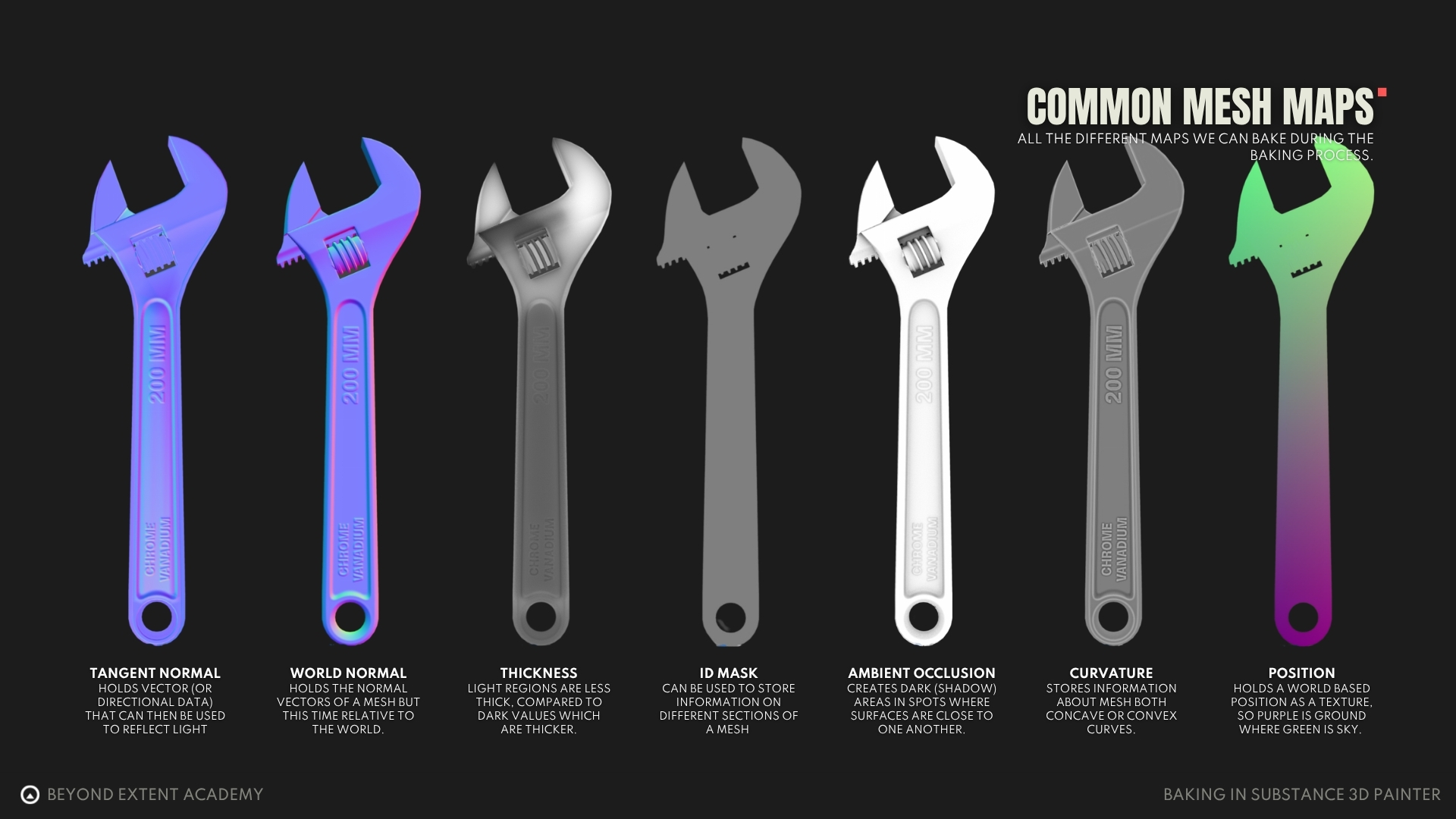
Normal
Normal map or more precisely Tangent Space Normal map is the main reason we want to tackle baking. Seeing it in action for the first time feels like magic.
Normals or normal vectors are special type of unit vectors that point in the same direction as a face containing them. They are used by the engine when calculating light.
I’ll explain what a normal map is in three ways with increasing precision so you can pick which one resonates with you the most.
- Vague - it remembers the direction of high poly faces and puts them on the low poly mesh.
- Decent - it contains the deviation between the low poly normals and high poly normals.
- Precise - it holds the information about the high poly normal vector in a given point relative to the low poly face normal.
This map is the reason we can see all the detail from the high poly mesh in our “Neutral Material” as if it’s no longer a low poly mesh.
World Space Normal
World Space Normal map also holds the normal vectors of a mesh but this time relative to the world. It let’s you select the regions of a mesh that point certain direction. For example if you wanted to make a dust or snow layer you would use world space normals to determine which parts of a mesh face up as that is where most of it would accumulate.
Thickness
As per name it let’s us know what is the thickness of a mesh in a given point. The darker the value the thicker the mesh. Typically used for SSS. The settings we get for it already appeared in AO except for the Normalization which defines how it gets normalized.
ID
ID map takes the id information from the mesh and stores it as a color so you can later select parts of a mesh by their IDs. It needs a bit of forethought when exporting.
Example use would be a situation where we have model of a gun with wooden stock and a grip. It would be nice to have the ability to easily separate wooden and metal parts. Before exporting we would give them different IDs, bake those onto the low poly mesh and then use them as a mask when texturing.
How you pass the ID map is completely up to you and the software you used for export. Substance has setting where you select between Vertex Color, Material Color, File ID and Mesh ID/Polygroup. If your choice of passing IDs does not contain color, Substance will also ask you to pick the way you want to convert the IDs into colors from Random, Hue shift or Grayscale.
Ambient Occlusion
Ambient Occlusion or AO is a way for game engines to simulate the behavior of light in crevices.
To calculate AO Substance Painter will ray trace from a low poly mesh towards the high poly one. Whenever a ray hits a surface it will darken the place it was traced from.
What it does is create dark zones in spots where surfaces are close to one another. In Substance it’s baked down to a map and used to generate things like dirt.
It has couple of settings so let’s take a look at what they are and what they do.
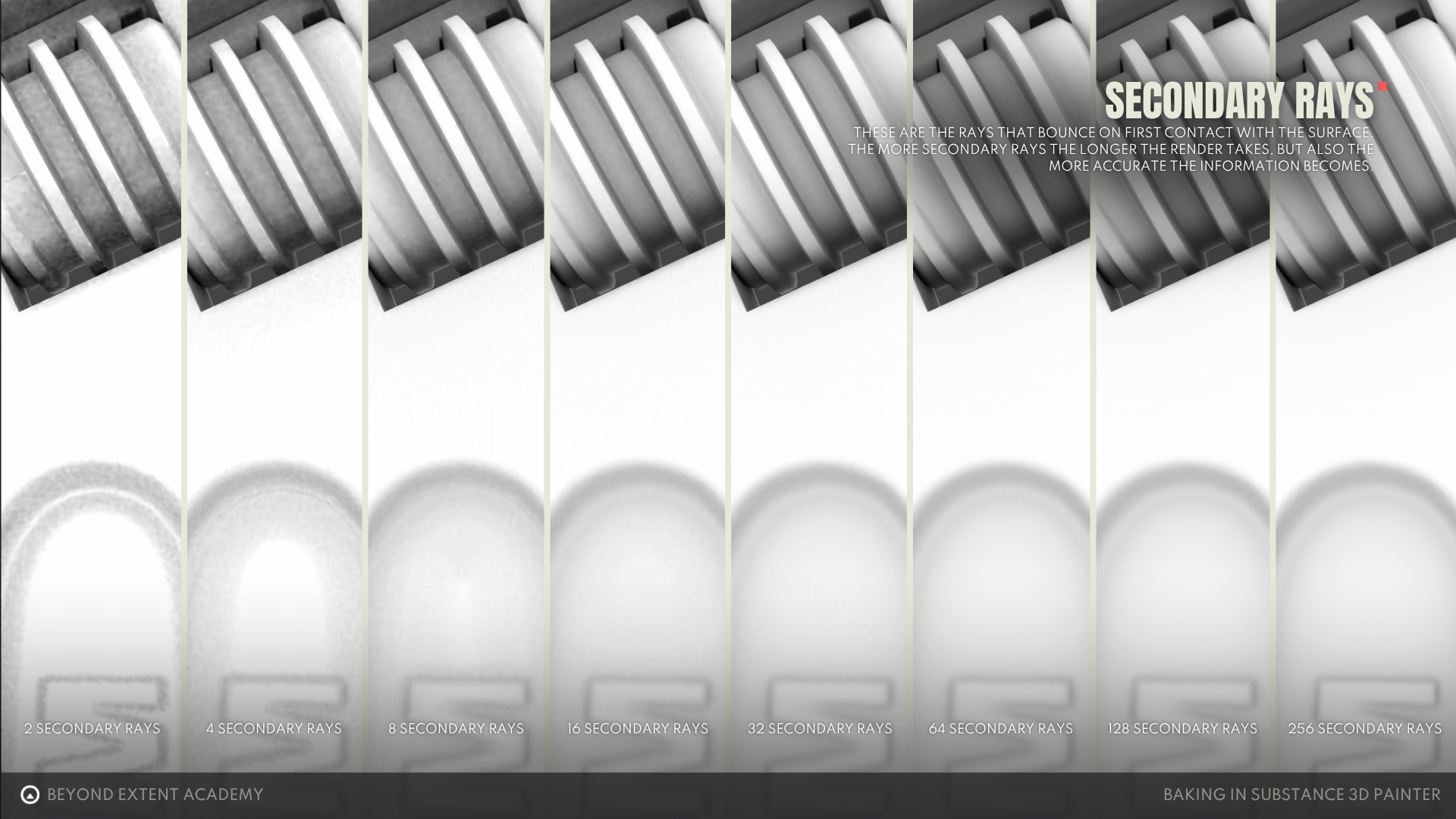
- Secondary rays - controls amount of rays used to calculate AO, the more the better quality but it increases baking time.
- Min/Max Occluder Distance - controls the minimum and maximum distance that the rays can travel to influence the AO.
- Relative to Bounding Box - if it’s selected the distance will be mapped to a bounding box of a mesh where 1 would be it’s size.
- Spread Angle - controls the angle range the rays are shoot at. Higher angle usually means more occlusion.
- Distribution - controls the distribution of the rays cosine meaning more get sent along the normals and linear meaning they get sent equally in all the directions. It’s recommended to use Cosine as it’s the most realistic. However, if your AO starts looking washed out in the sharp angles or has light leaks, changing it to linear might help fix those issues.
- Ignore Backface - this setting let’s you choose if you want the rays to bounce off of backfaces of mesh. Your high poly mesh should not have any holes so no backfaces will be exposed but for low poly only baking it’s good to take a look at this setting and it’s influence on AO.
- Self Occlusion - defines if mesh different parts of meshes should occlude themselves. Always is usually recommended but there are situations where it’s not desirable like baking floaters or when texturing multiple independent meshes at the same time.
- Attenuation - controls how AO is attenuated with distance.
- Ground Plane - If checked the ground plane will be added to AO calculations creating occlusion at the contact points.
Curvature
Curvature as the name suggests has the information about the way mesh curves. Flat spaces have perfectly gray value (0.5), pointy areas get lighter (0.5-1.0) and concave areas get darker (0.0-0.5). It’s used to generate edge ware or dirt. It’s probably the second most useful map after the normal map.
Substance gives us couple of settings to control it.
- Method - it’s the method used to generate the curvature. It used to be generated from a normal map but now it’s done by raytracing from low to a high poly mesh and it’s recommended to keep it that way.
- Secondary Rays - the amount of rays to trace. More means better quality but longer baking times.
- Sampling Radius - defines the distance the ray can travel to still have the influence.
- Relative to Bounding Box - if it’s selected the distance will be mapped to a bounding box of a mesh where 1 would be it’s size.
- Self Intersection - let’s you choose if you want to use all the objects for calculations or only the corresponding one (Only Same Mesh Name).
- Auto Tonemapping (per UV Tile) - automatically maps the values of the curvatures per keep it checked for the most time. If you want to map it yourself you can use sliders for Min and Max to do so.
Position
This map holds the position of each parts of the mesh. One example of use would be creating a gradient mask at the bottom of a car where the mud and dirt would gather and gradually get stronger the lower to the ground you get.
We have couple of settings for adjustment here so let’s take a look.
- Mode - allows us to select which axis we want to create the position gradient for. We can pick between one or all.
- Normalization Type - defines how the values will be normalized and we can pick between bounding box, bounding sphere or no normalization.
- Normalization Scale - defines bounds of normalization. If we want to have the position gradient for every material then we can pick to do so. Most of the time we will use Full Scene.
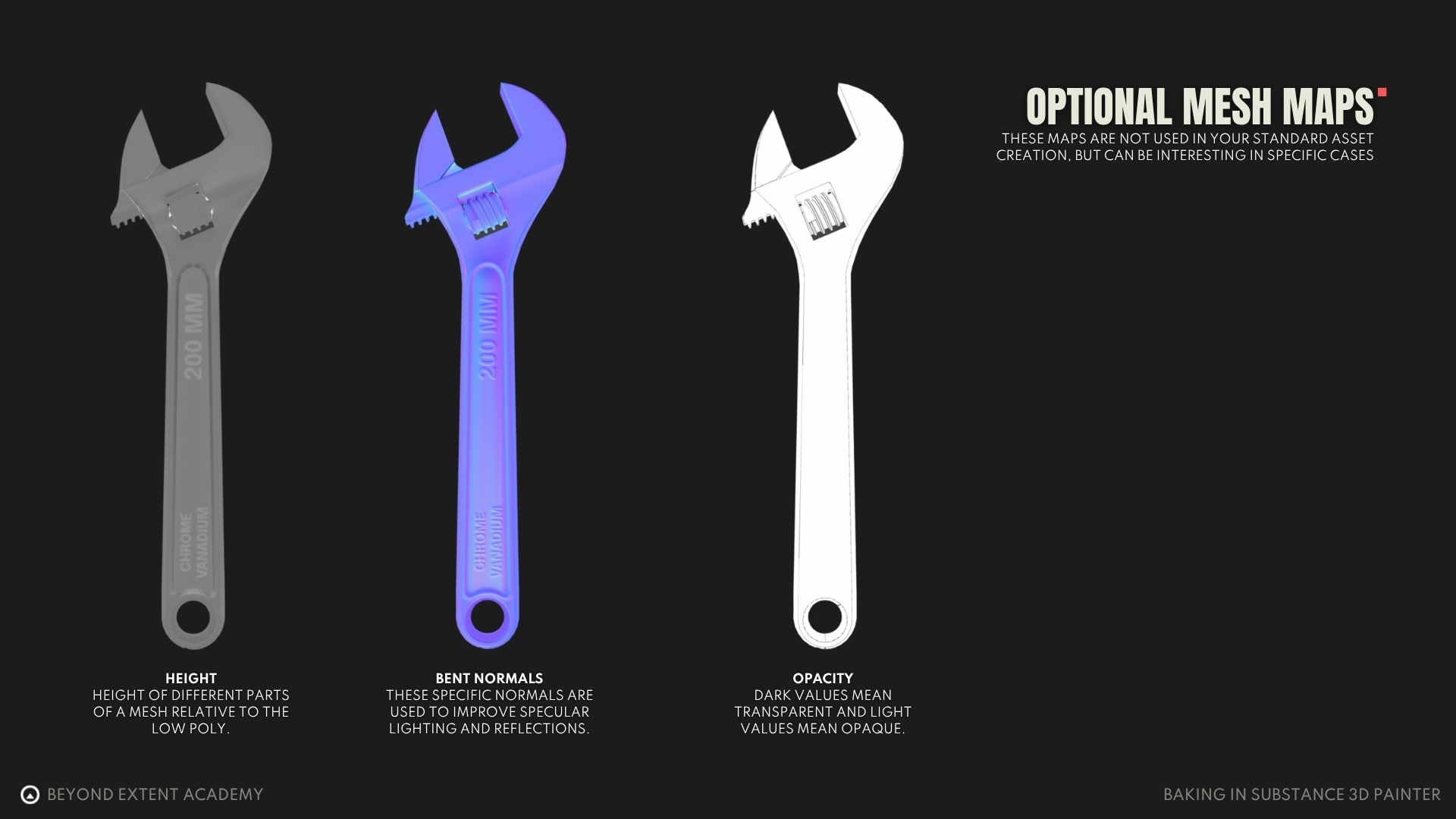
Optional mesh maps
Height
Height represents the height of different parts of a mesh relative to the low poly. The results you would get by baking normal map and height map can look similar but the main difference lies in the use case. Height maps are used for terrain generation, displacement, Parallax Occlusion and Height blend materials whereas normal map is used to translate the details from high to low poly.
The only setting we have access to is a way of normalization which should usually be left at the default.
When we want to add details to the way our material interacts with the light we should not use height to do so but normals.
We will break this rule very fast as it is way easier to add detail in the material creation process by just plugging in the texture and saying it’s values are the height, than generating the normal textures for everything. It’s important to remember that we are breaking the rule and not that it doesn’t exist.
Substance Painter is also aware of that and will convert height detail to a normal detail for us during export.
Bent normals
This map also holds the normals but modified (bent) with the information about the direction of the light. It’s hard to visualize but the easiest way to understand it is by knowing what it’s used for. Main use for bent normals is to fix light leaks in real time engines by telling the engine where the source of light needs to be to light up given point.
For example let’s assume you have an asset of a closed box with a hole in it’s side and a chrome pipe inside. When engine asks for normals to calculate reflections it would get information that the normals are pointing up so it would try to draw a sky reflections. If we use bent normals they will correct it by basically saying "I know the surface points up, but the only way light can actually get in here is from the hole on the side".
Using bent normals can deepen the shadows and make them look more realistic.
It’s worth mentioning that with real time raytracing bent normals loose their relevance a bit as raytracers check for occlusions automatically. Using bent normals will still improve the quality most of the time, but it’s there to provide a safety net for still not perfect real time raytracing in times when it misses a bounce or the detail is to small to be displayed correctly with global systems.
The settings in this section are the same as in AO section as bent normals are kind of like a normal map version of AO.
Opacity
Tells us how opaque the object is. Dark values mean transparent and light values mean opaque. It’s useful when creating foliage atlases or things like a chainmail.
Baking settings
Final step before baking is setting up the most important baking settings. We’re gonna need to turn the Baking visualization back on for that. We should see something like this. Let’s go over the Common settings for the bake and what they’re used for.
Common settings
- Output size - Here is where you pick the size of the baked maps. You can technically opt to unlock (press the lock icon) the dimensions of the texture to make it rectangular. Even though it’s a rare practice it can potentially help you optimize texture space for situations where you texture long objects like swords or rifles that on square texture would require cutting up into smaller pieces.Another situation that could use non square texture would be a trim sheet creation. Sometimes it’s better to keep the texture narrow instead of adding redundant information to a texture that is going to be tiling anyway.
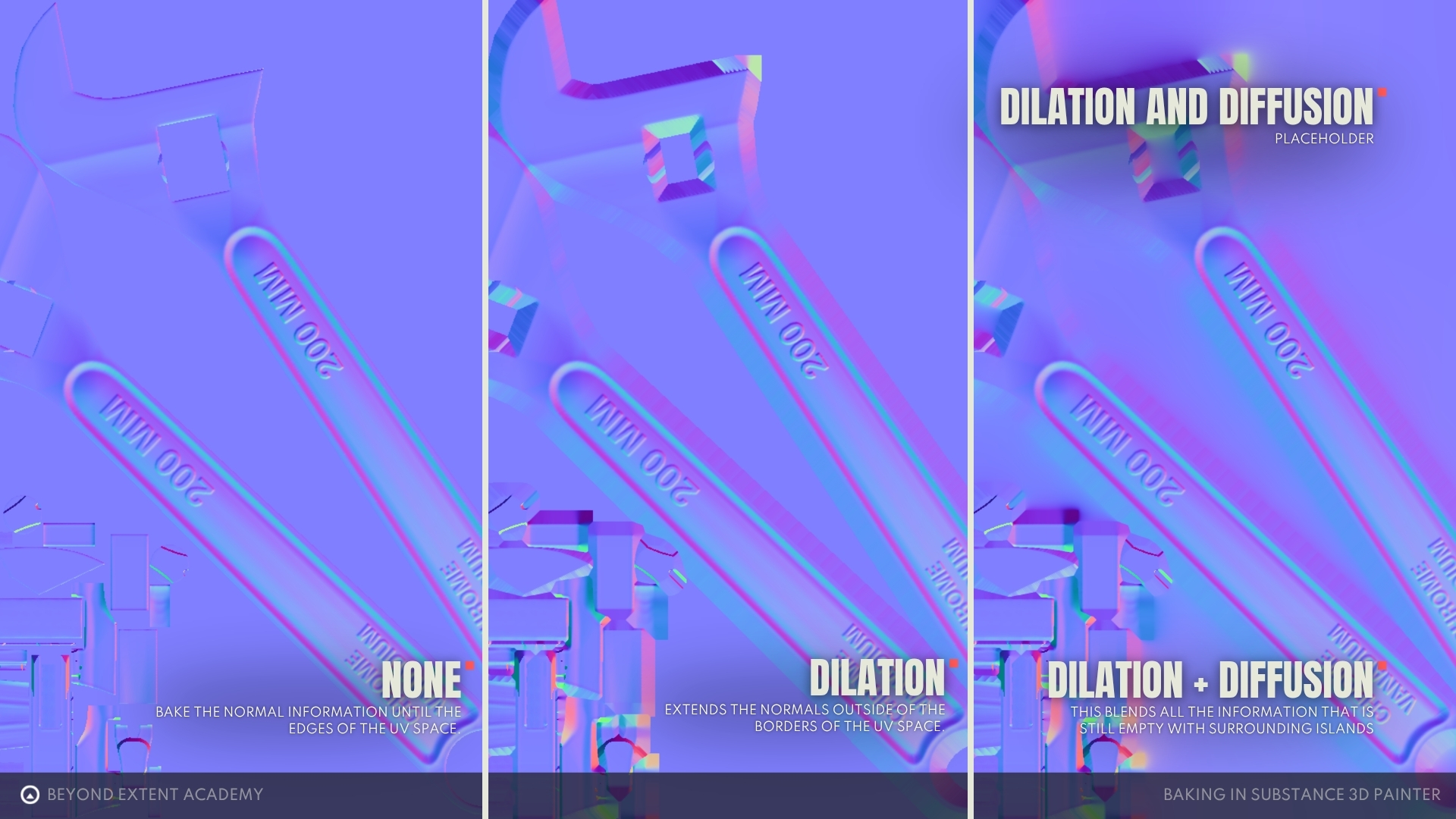
- Dilation Width - this setting let’s us artificially expand the maps outside of the UV shells to prevent bleeding at the shell edges. It also helps with generating lower resolution versions of textures when we import them in the game engine. It’s recommended to keep this value above 16.
- Apply Diffusion - if checked will diffuse the edges of the maps. If dilation width is not 0 it will diffuse the edge of the dilated map.
- Use low poly mesh as high poly mesh - this setting let’s you bake the maps using the low poly mesh as a source. It’s mostly used when you don’t need normal map but care about curvature, thickness and other maps. Very common when working with mid poly assets.
- High definition meshes - this is where you will import your high poly mesh to be used as a source of the bakes.
- Use cage - check this if you have a different mesh that you would like to use as a cage. It’s a useful option when you’re baking complex objects whose low poly is not enough to capture details without creating artefacts.
- Cage file - This is where you would import your cage file, these are used to set custom baking distances based on the mesh you provide.
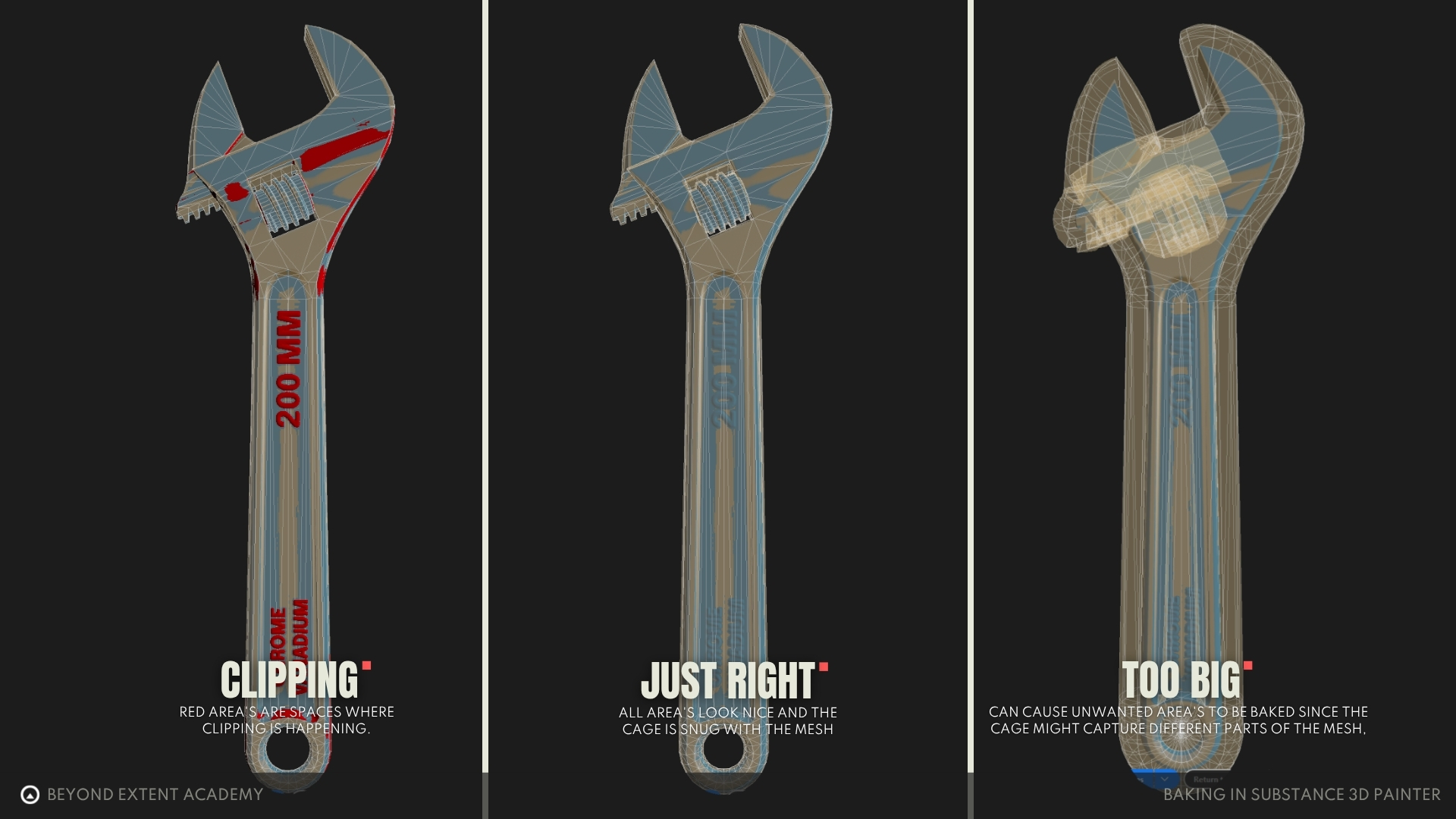
- Max frontal/rear distance - Value that determines how far would the vertices be inflated/deflated when creating the automatic cage for your mesh. You can see the cage change in the preview when tweaking those values.
- Relative to bounding box - when checked will make sure that the size of the cage is relative to bounding box where 1 would be it’s size.
- Average normals - tells the baker to average the normals when creating cage. It makes sure that cage stays connected. We discussed the average and split normals in previous lesson lets bring back the graphic to refresh our memory.
- Ignore backface - this option will make sure that we don’t bake the backfaces of our mesh
- Antialiasing - smoothes aliased artifacts of the baked maps. Increasing the value will increase quality but also bake time.
- Match - this is where we choose how to match low and high poly counterparts of the asset for the bake. If you went through the trouble of naming your assets with suffixes _low and _high. This option should be set to “By Mesh Name”. We use this option to make sure that Substance will think of each mesh as a separate baking pass, this in turn allows it to avoid problems with different parts of the mesh baking onto each other.
- Before “By Mesh Name” was available in Substance people used to explode their mesh (moving each part of the mesh away from each other for baking) to avoid baking artifacts.
- Suffixes - here you can change the naming convention for high, low and backface ignored meshes.
Cage setup
We now know everything there is to know about the settings of our bake now it’s time to prepare our cage for a nice bake.
As previously mentioned the main settings manipulating your cage are going to be Max frontal/rear distance we want to set those as small as possible where there is still no clipping visible. Fortunately it’s easy to see max frontal distance as all the clipped parts of geo will turn red in the viewport. When it comes to the rear one it’s more problematic as it is inside the mesh. A good rule of thumb is to keep it default and if you see any baking issues lower it slowly.
General baking setup
Here is the list of the things to look out for when setting up your bakes.
- Match “By Mesh Name” if you divided your mesh into parts. Also think about setting Self Intersections for Curvature to “Only Same Mesh Name”. Same thing for Self Occlusion in AO, Thickness and Bent normals (it’s better to have Self Occlusion set to Always but changing it can fix some of the baking issues).
- Use “Average Normals” unless you intentionally set up the bake not to use it.
- It’s easiest to adjust settings with “Relative to Bounding Box” on.
- Make sure you don’t see obvious errors in bake viewport.
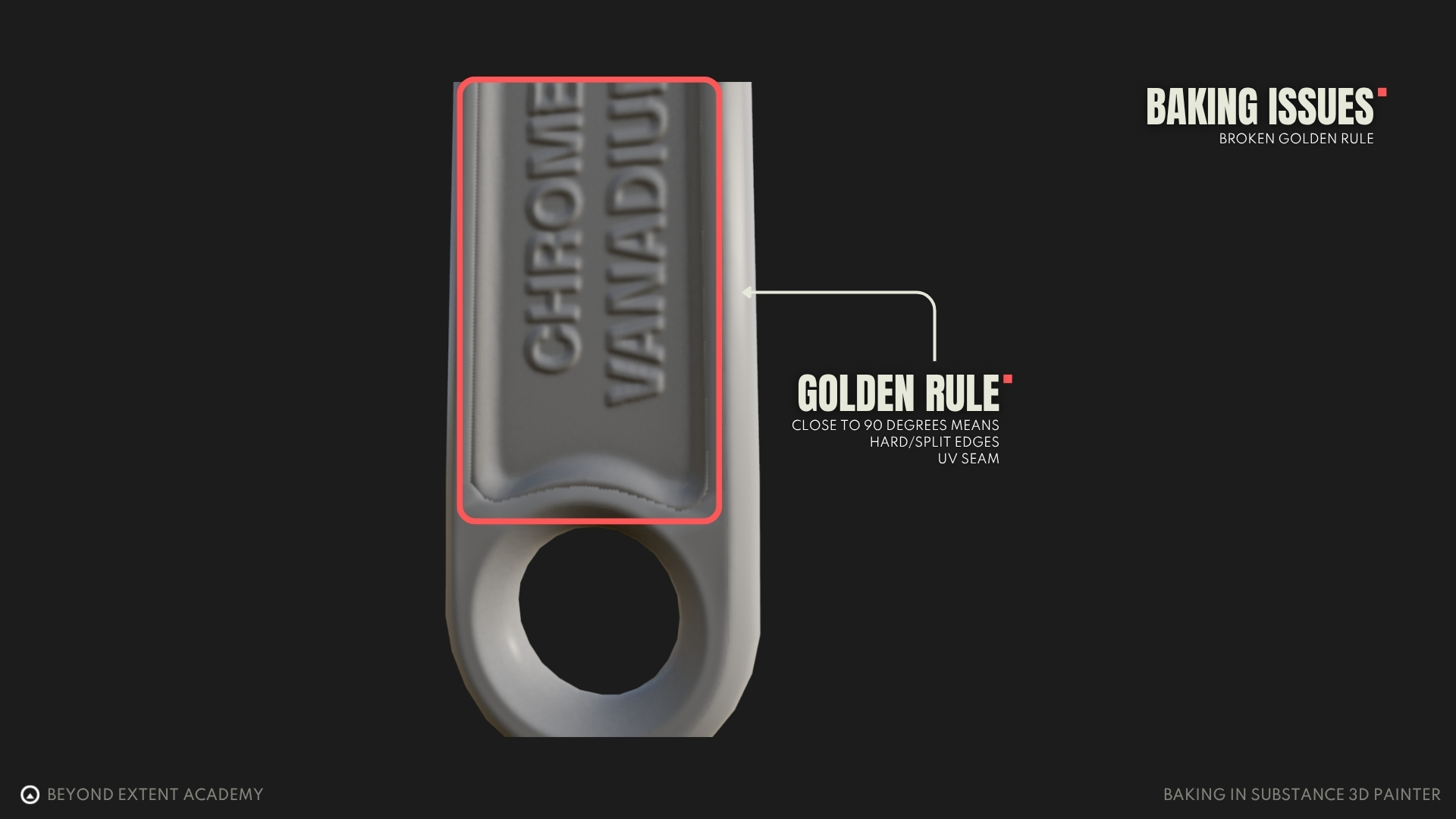
If you forgot about The Golden Rule and your sharp edges do not have a seam it will be displayed as a purple edge in the baking viewport.
exercise
Iterative Test Baking
⚠️
Missing EXERCISE IMAGE/VIDEO
goal
Follow along as we move towards a polished bake.
⚠️
Missing exercise goal
⚠️
MISSING DOWNLOADABLE CONTENT
We did a quick preliminary bake in the beginning to showcase what maps can be generated, but now that we’ve gone through the necessary settings and terminology, we can turn our focus towards optimizing our bake with some quick and rapid experimentation. The last thing we need is perfect bake with artifacts.
For that purpose we will be setting up a test bake where we lower the quality and increase the speed of map generation. That will allow us to rapidly change meshes and fix any problems we encounter along the way.
Settings that will have the most impact would be:
- Output size - the larger map we want to generate the longer we will have to wait. That’s why it’s good to set this value low. Around 1k should be good, unless your PC can handle 2k but anything more is just a waste of time.
- Antialiasing - this setting will not help us fix any problems with generation that’s why we turn it off completely for the test bakes. It’s especially time draining as it uses SSAA for antialiasing which renders your maps in a higher resolution and then lowers it to reduce aliased edges.
- Secondary rays - reducing this value for AO, Curvature, Thickness and Bent normals can drastically increase the bake speed. Around 16 should be enough to catch all the problems with not too much of a performance strain.
Final Bake
After you tweak all the problematic parts and you’re left with low quality but a clean bake you can start thinking of bringing that quality back up. Crank up all the values mentioned before up keeping in mind that Output Size is the most important one, if you can make it 4k you should. Even basic 4x Supersampling Antialiasing should be enough although you might want to increase it if you have resources for it. Secondary rays should be kept relatively high to avoid grainy maps. Below you can see the comparison between the output and ray count. Generally it’s recommended to not use anything below 64 samples for final bake as even with these samples results can appear grainy depending on your final texture resolution.
Below you can see what the forementioned grain looks like. We want to make sure that there is no grain visible when we’re done with our final bake. The value of Secondary Rays that produces quality results can change depending on multiple factors like map size or mesh so make sure to check every time if it’s set right. Don’t just rely on whatever value worked last time.
exercise
Fixing common baking issues
⚠️
Missing EXERCISE IMAGE/VIDEO
goal
Fix this thing!
⚠️
Missing exercise goal
⚠️
MISSING DOWNLOADABLE CONTENT
Now that we know how to bake we’ll get hit with mountain of issues that can appear while baking. Let’s try to take a look and fix them.
So for the default wrench model there wasn’t that many problems so let’s open up the more messed up version of it and fix it step by step.
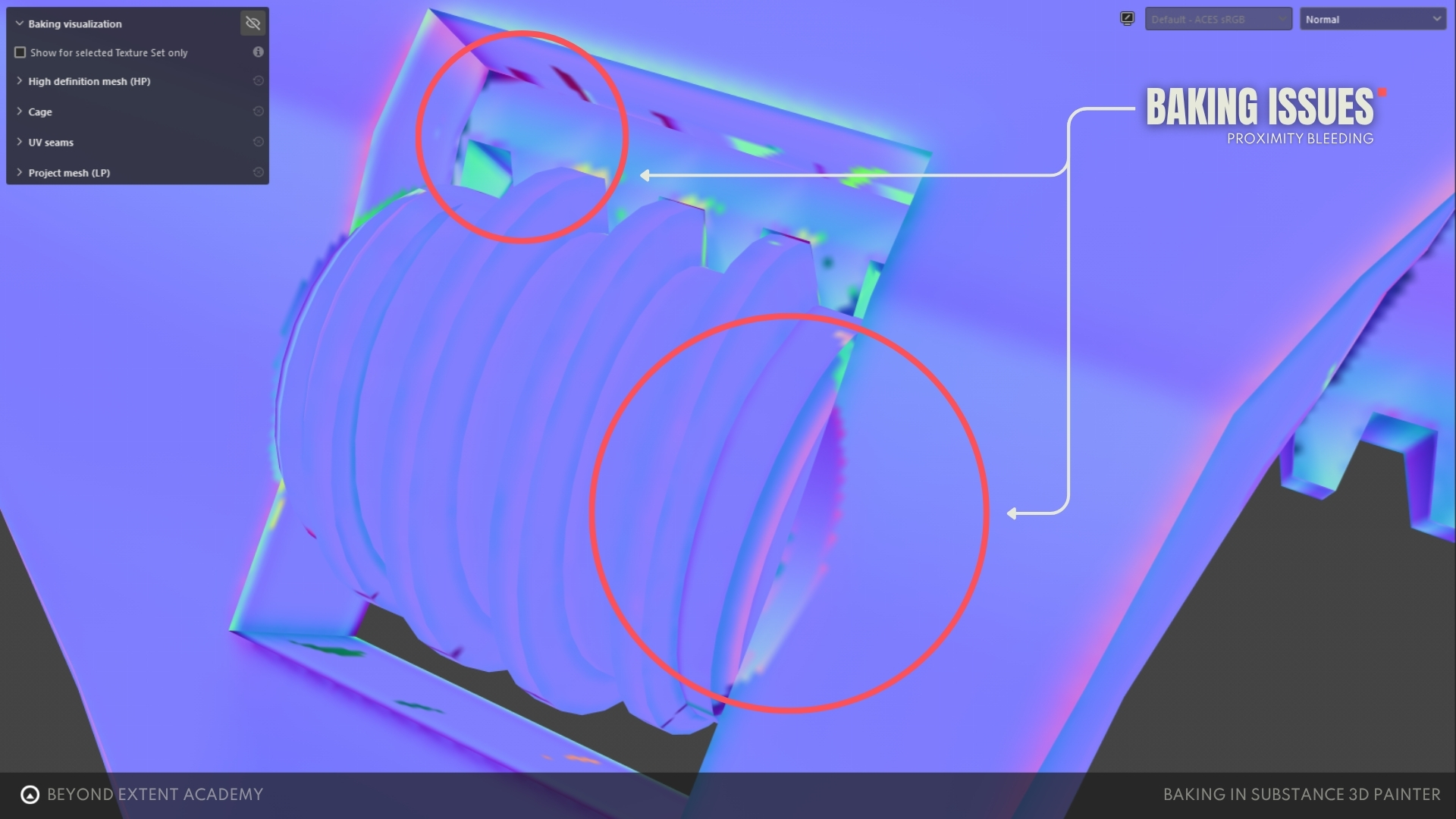
Proximity bleed
This is the most common issue. If there are multiple objects close to each other (in the wrench we have the threaded middle part and the main body of the wrench), the baker would bake the “Shadow” of one geo onto another.
Fix: Make sure to Match “By Mesh Name” or use outdated method of exploding your mesh, which means moving individual parts away from each other.
Wavy or Skewed details
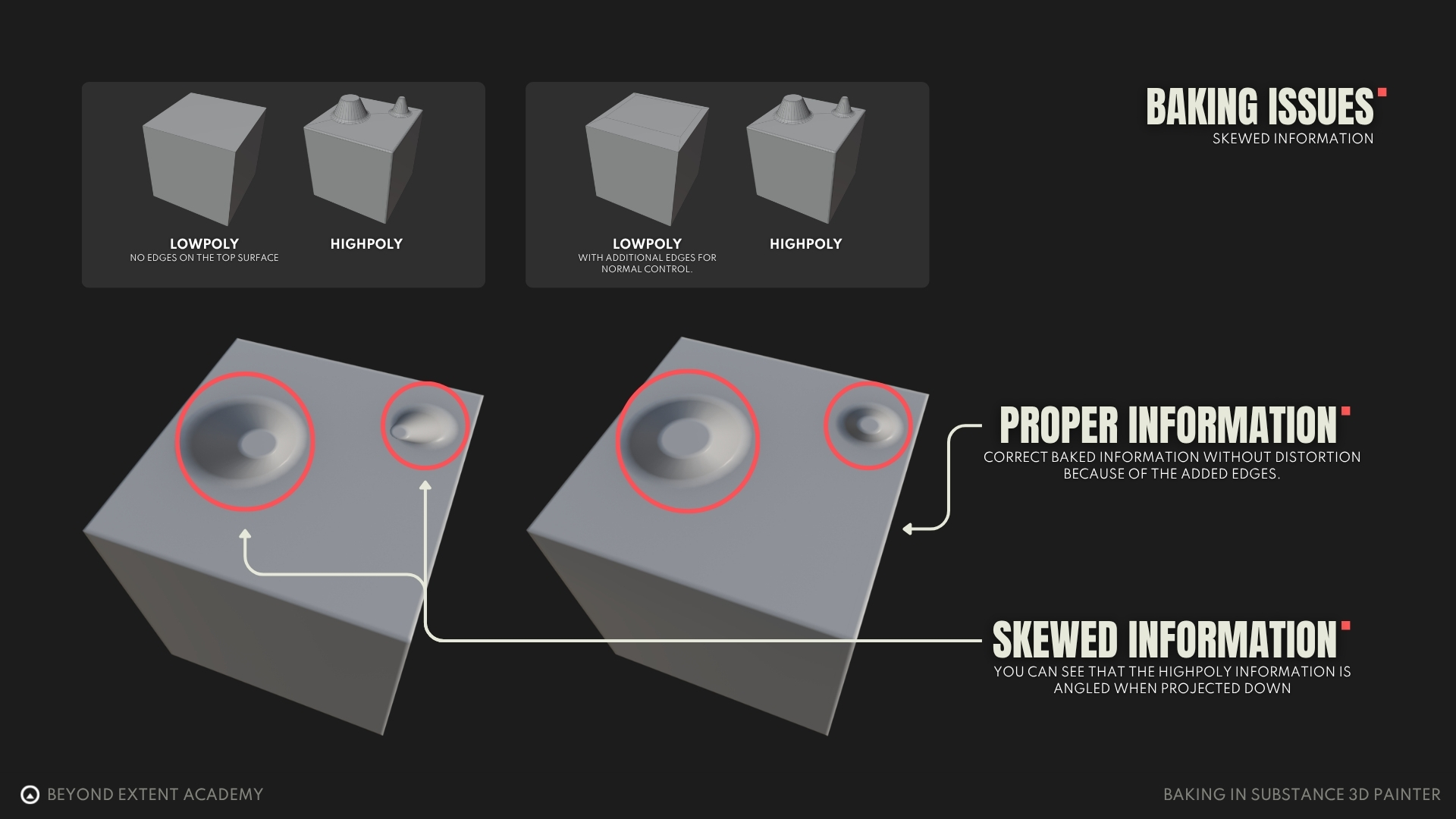
Sometimes averaged normals can cause the details of your bake to be skewed aka. averaged along normals.
Fix: The easiest way to fix that is to not use averaged normals. Unfortunately,most of the times that will make the bake look bad so we won’t be using that.
The second way is to add edges to a low poly around the skewed detail and you might even be able to remove them after the bake. The third way and the one that always works is to create a custom cage for your mesh. It will use up the most of your time out of the three but it will work 100%. Below are the results of the second method.
Broken Golden Rule
If you break the golden rule and miss the purple edge (sharp edge with no seam) in the bake viewport you will see a dark line at the culprit edge artifacts.
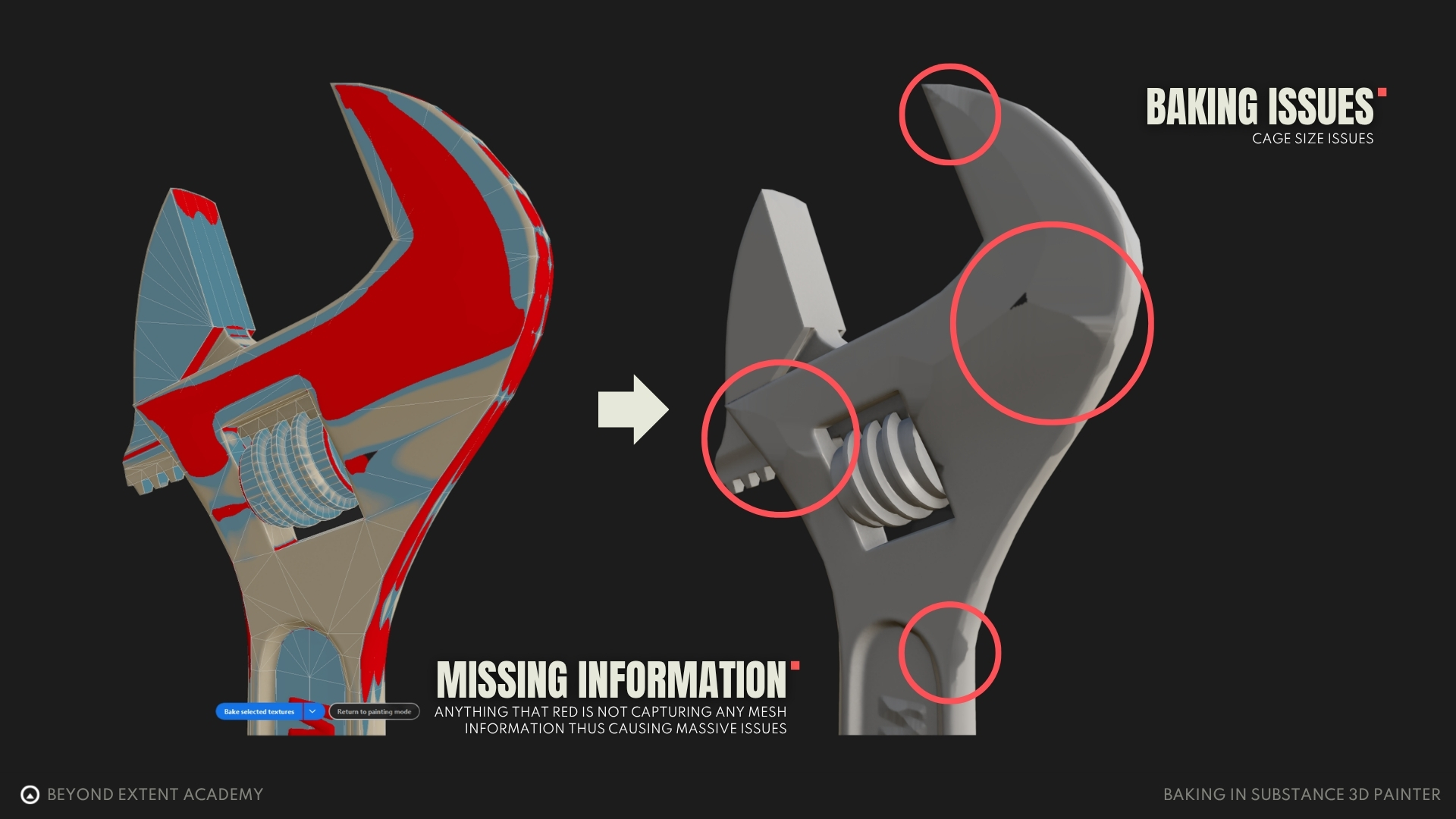
Cage size issue
If you make your cage too small it can create weird normals (those are the dilated parts of texture) and even black spots where the bake didn’t happen.
Fix: Adjust your cage size. If you cant make the artifacts disappear with generated cage it’s time to invest some time into creating a custom cage mesh.
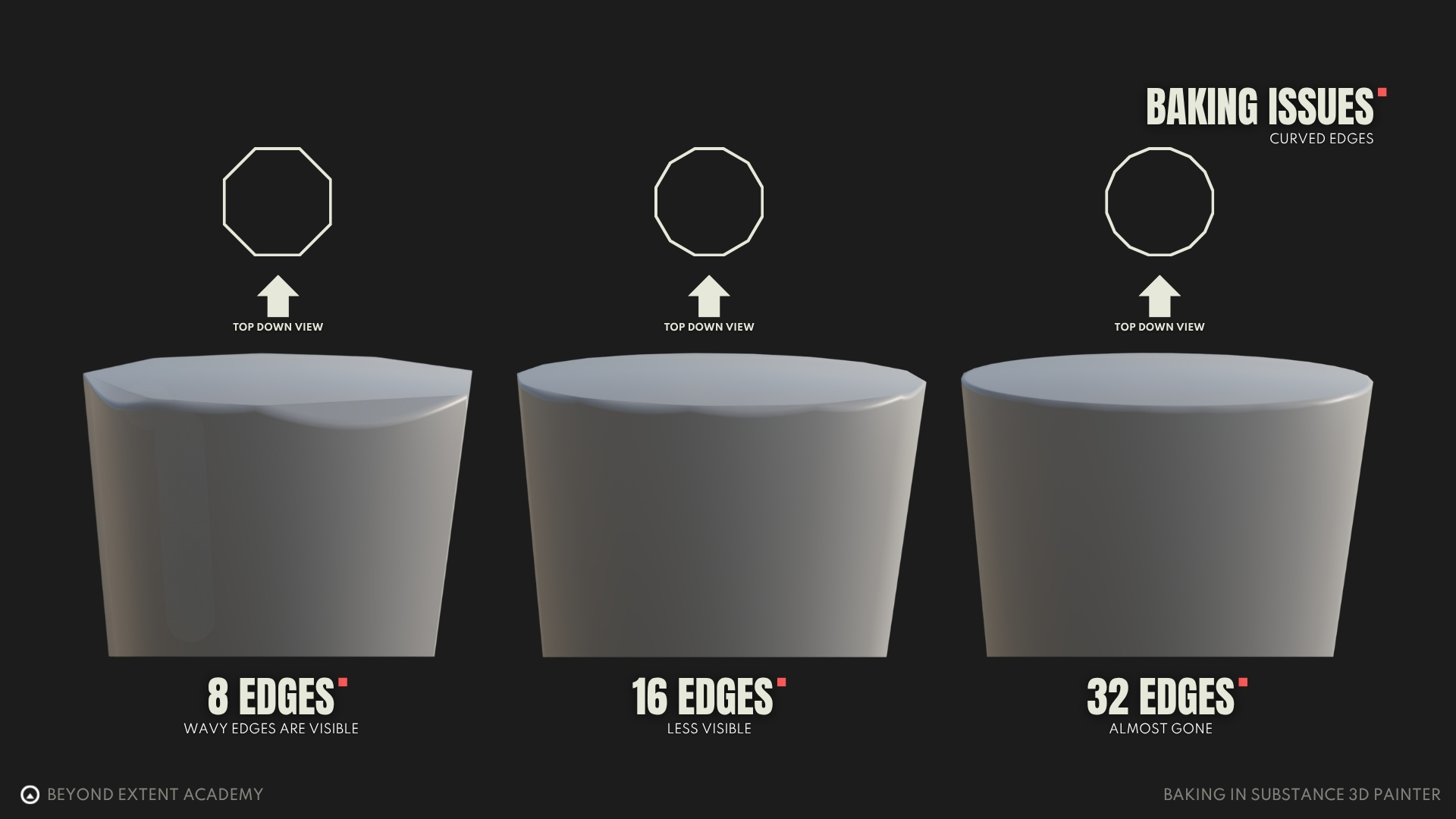
Curved edges
If you don’t have enough geometry at the edge of curved surface you can see jagged or wavy patterns. Fix: Increase the geometry to follow the curve more closely.
Conclusion
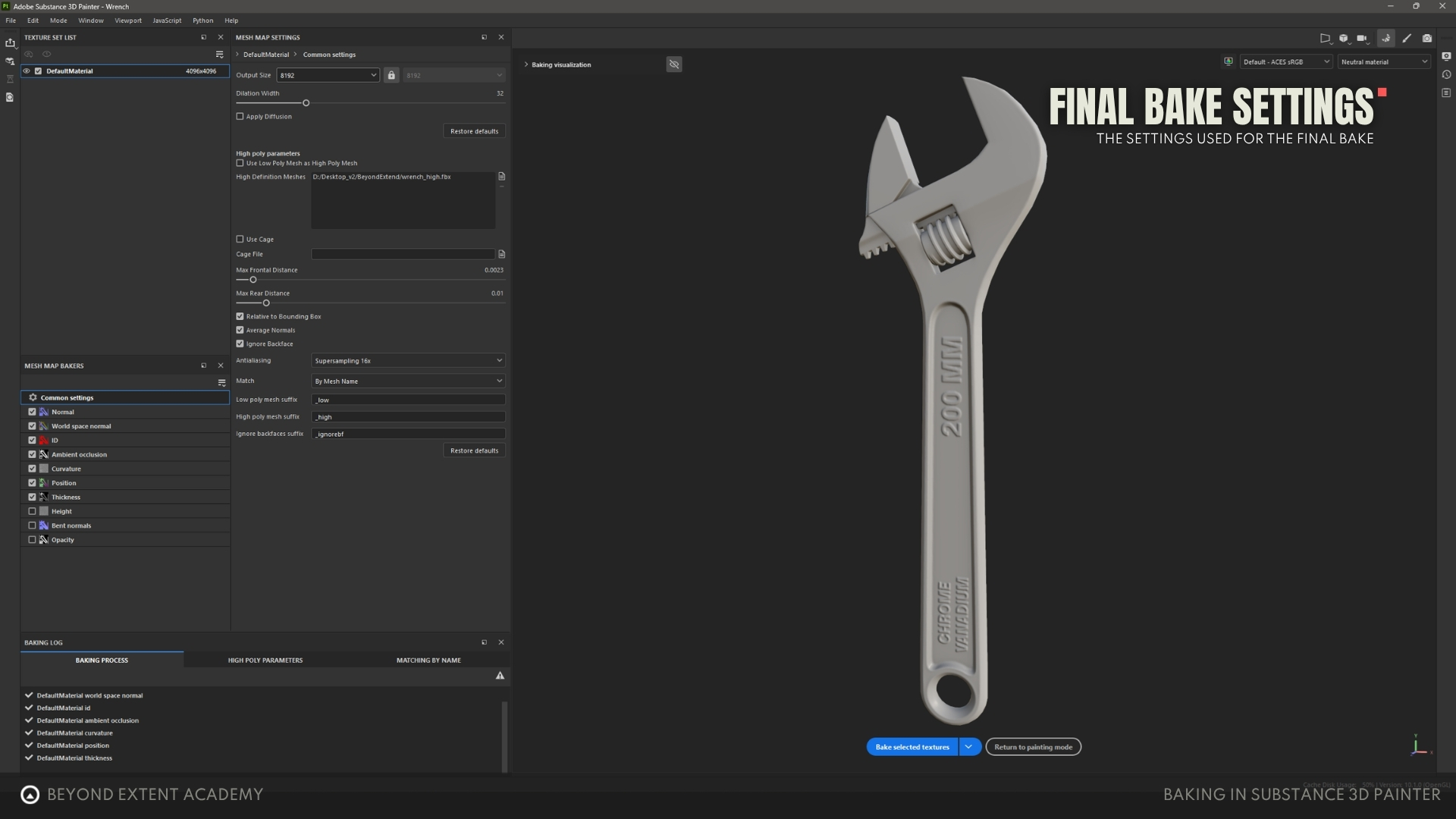
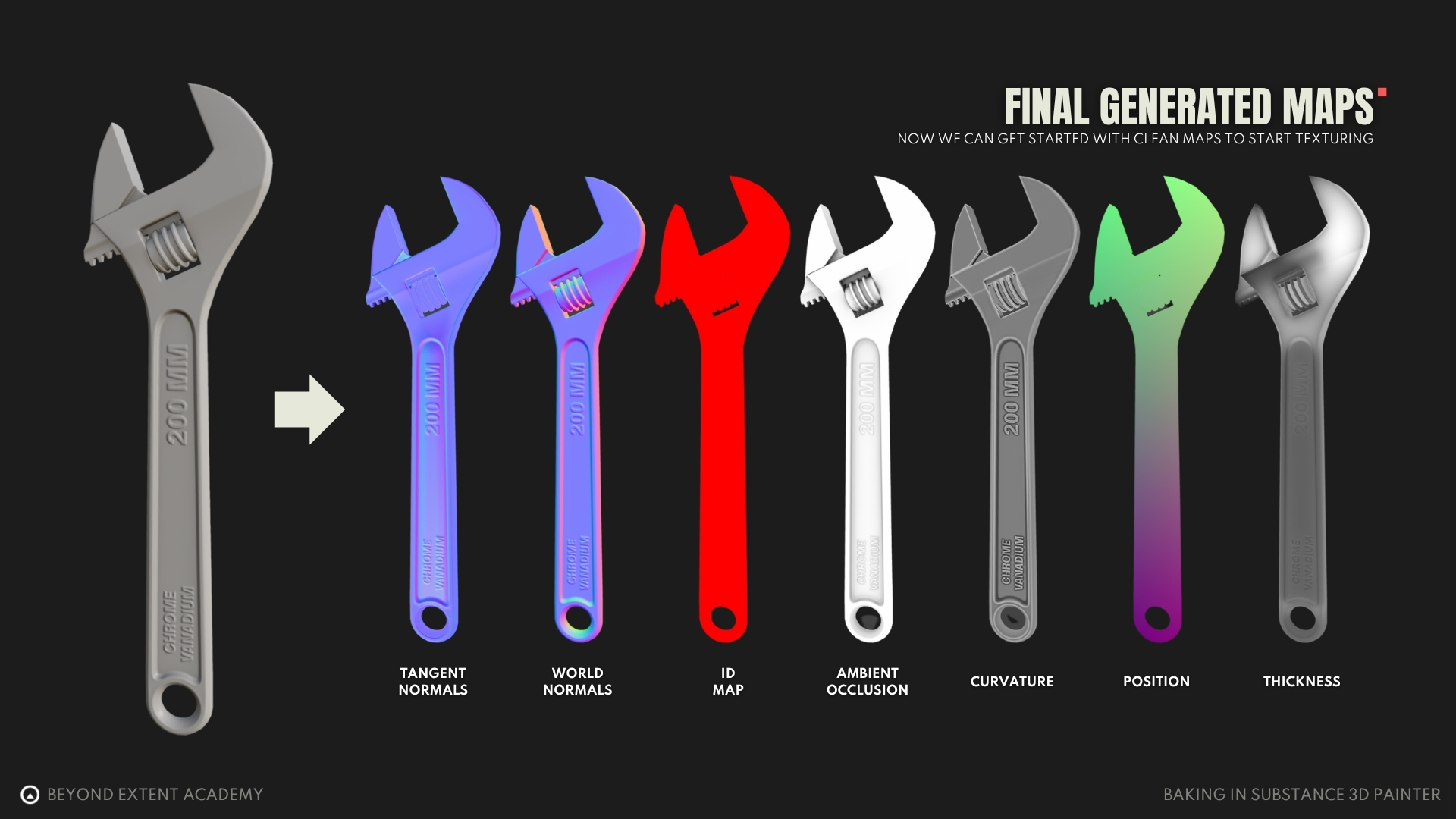
With all of that said you should be able to bake any mesh you want with nice and crisp values. You should also be a little more familiar with Substance Painter and its UI. We went through all the maps that can be baked in Painter and understood their purpose and how to manipulate their generation. Here is the final setup of the wrench bake and it’s results. Except from what you can see on the screenshot, all the secondary rays were cranked up to 128 and the Curvature Self Intersections were set to Only Same Mesh Name.
RESOURCES
⚠️
MISSING RESOURCES